If you spend time sorting markups, pulling quantities into a table, or turning review comments into a report, you probably have various Bluebeam tasks you would happily hand over.
Bluebeam Max gives you another way to tackle that work. Through Model Context Protocol (MCP), you can connect Claude to Revu and describe what you want in everyday language.
Claude runs in its own desktop app and uses the connection to work with supported information and tools in Revu. Depending on your setup, it can read markup data, summarise comments, work with existing measurements and carry out edits you approve.
That makes it useful for estimators, architects, engineers, BIM teams and document reviewers. Read the full article to understand everything you need to know about Claude and Bluebeam integration.
How does Claude AI Work in Bluebeam Max?
Claude is Anthropic's AI assistant. Revu provides the PDF environment and document tools. MCP connects the two, so Claude can request information from the active PDF and use the Revu actions available to it.
You stay in Claude to give instructions, while the document remains open in Revu. A request might involve reading markups, grouping the results, and producing a table. If editing tools are enabled, it can also involve changing the PDF.
The tools Claude can use depend on your Revu version and the permissions you give it. Knowing that helps explain why a prompt might work on one setup and need adjusting on another.
Why MCP Matters for Bluebeam Users
Construction PDFs hold more than drawing graphics. There may be searchable text, measurement values, comments, page labels, statuses, and custom columns, all useful when you need to answer a project question.
MCP gives you a way to ask for that information without manually repeating every step. For example, you could ask Claude to total a defined set of area measurements, summarise outstanding comments or find markups that mention electrical work.
The quality of the source still matters. Consistent Subjects, Labels and statuses give Claude something clear to work with. If half the markups have no status, a tidy summary should show that gap.
What Exactly Is Model Context Protocol?
Model Context Protocol (MCP) is an open standard that lets AI applications connect to external tools and data.
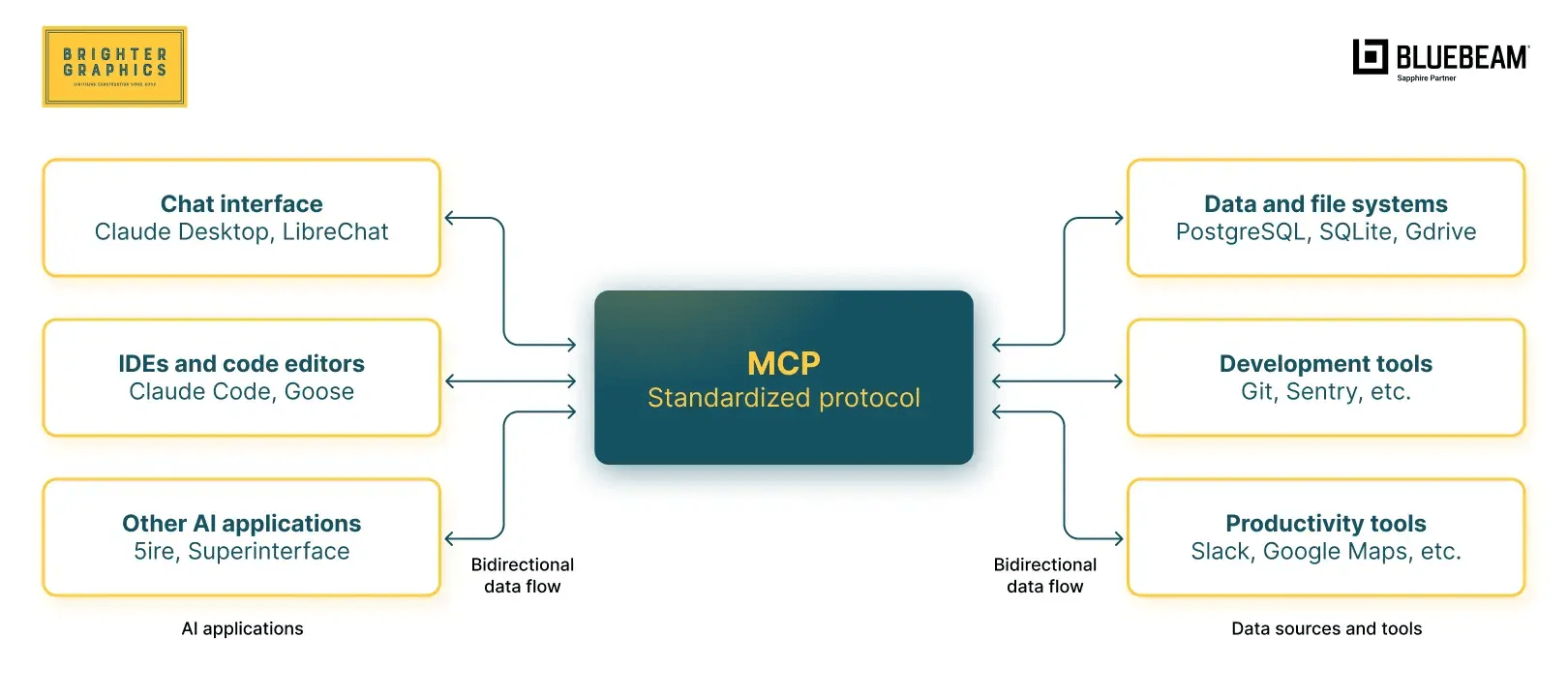
Bluebeam's MCP server exposes supported Revu functions to Claude.
Take a simple request such as asking how many pages are in the active PDF.
Claude can call Revu's get_page_count tool and return the result. More involved requests can combine several tool calls, such as retrieving markups and then organising their properties into a report.
You do not need to memorise the tool names. You can just prompt Claude, and it will look for the relevant tool on its own to check whether a particular action is supported.
Claude Is Not the Only MCP Option
MCP is the connection standard, and Claude is one application that can use it. Bluebeam also publishes setup guidance for other clients, including ChatGPT through Codex, GitHub Copilot and AnythingLLM.
Each has its own requirements. This guide focuses on Claude Desktop for Windows and its connection to Revu.
How to Connect Claude with Bluebeam Revu
You need a Bluebeam Max subscription, Revu updated to version 21.9 or later, Claude Desktop for Windows, and an internet connection. Always use the latest Revu release available to your team, because some actions require a newer version than older versions do.
Update and Sign in to Revu
Make sure you have a Bluebeam Max subscription and are using Revu version 21.9 or later. Sign in to Revu with your Bluebeam ID.
Install Claude Desktop
Download and install the Claude desktop app and sign in. Fully quit Claude from the settings menu before configuring the connection.
Enable MCP in Revu
Open Revu and go to Revu > Preferences > Admin > MCP. Select MCP Enabled, then check the Claude for Desktop option. Click OK, then close and reopen Revu.
Check the Bluebeam connector
Open Claude. Go to Settings > Connectors, and ensure that Bluebeam is showing Connected. Click Bluebeam plugin to review tool permissions.
Test with a simple prompt
Open a PDF in Revu. Then test the connection by asking Claude:
How many pages are in the active PDF in Revu?
Check the answer against your document opened in Revu. If the connection fails, close everything, and reopen to test again.
What Claude Can Do in Revu?
Claude can help retrieve document information, extract text, organise markups and turn the results into summaries or tables. With the right tools and permissions, it can also edit properties and perform other document operations.
Bluebeam's MCP tool reference lists the minimum Revu version for each action. A few useful examples are below.
|
Minimum Revu verson
|
Examples of available actions
|
|
21.9
|
Read page information and text, retrieve markups, edit markup properties, and work with statuses
|
|
21.10
|
Search text, add or delete markups, and import or export custom columns
|
|
21.11
|
Read bookmarks, manage hyperlinks, and automatically resize text boxes
|
These are selected examples, not the full tool list. Check the reference when building a workflow around a particular action.
Claude also offers Bluebeam prompt templates through Connectors > Add from Bluebeam, including text comparison, search and replace in markups, and batch search and highlight. They provide a useful starting point for repeatable tasks.
Basic Prompting Workflows
Claude Prompts You Must Try with Bluebeam Max
You do not need complicated wording. You need a clear task, a defined scope, and an output you can verify. The examples below are starting points to adapt to your own pages, fields, and naming conventions.
For a markup search, try this:
In the active PDF, check physical PDF pages 10 to 25. Read markup metadata only and find markups whose Subject or Comments contain the word electrical, ignoring capitalisation. Return a table with the PDF page number, page label if available, markup ID, Subject, Comments and current status. Mark unavailable fields as missing. Do not edit the PDF.
Specifying physical page numbers avoids confusion between the tenth page in a file and a drawing labeled E-010. Keeping the markup ID gives you a reference for checking each result.
For text searches, check that the drawing text is selectable. Scanned pages may need OCR first. Flattened markups are a different issue. They no longer appear as editable entries in the Markups List, and OCR does not restore their original authors, statuses or markup properties.
Turning Claude into a Workflow Tool with Batch Prompting
Batch Prompting Video Tutorial
Batch prompting is useful when the same kind of task needs to happen across several markups. Our batch prompting guide explores using a custom column to hold instructions for individual rows.
For example, you could create a Text column called AI Instruction and enter a reviewed instruction such as “Set this markup's Label to Level 01 flooring.” The column stores the instruction. You still need to ask Claude to read it and carry out the workflow.
Start with a few rows and request a preview.
Read the AI Instruction custom column for markups on physical PDF page 3. Consider only rows with a non-empty instruction and exclude locked markups. Return each markup ID, its instruction and the exact proposed change. Do not make changes yet. Flag unclear instructions or unavailable fields and wait for my approval.
Once the preview is correct, approve that specific batch and ask for the IDs of changed and skipped items. If the connector cannot expose the column, stop and check the setup before continuing.
Using Claude for Estimating Workflows
Estimate in Bluebeam Max using Claude - Video Tutorial
An estimator may already have measured and labelled the drawing. Claude can help organise those quantities, apply supplied rates, and produce a draft cost schedule. Our estimate prompting guide follows this approach.
Before prompting, check the page calibration and measurement units in Revu. Decide what the calculation includes, and give Claudie the rate and waste allowance explicitly.
Here is an example using an illustrative material rate, not a current market price.
Use existing Area measurement markups with the Subject Flooring on physical PDF pages 2 to 5. Include only measurements confirmed as square metres. Apply a material rate of £28 per m² and add 10% waste to the measured area before applying the rate. Return each markup ID, page, original area, adjusted area and material cost, followed by a total. List missing quantities, unknown units and excluded rows separately. Do not infer missing values or edit the PDF. Exclude labour, VAT and pack-size rounding.
For a 12 m² measurement, this gives 13.2 m² after waste and a material cost of £369.60. Check a known row like this before trusting the full schedule.
Missing information should stay visible. An unknown quantity is not zero, and an unclear unit is a reason to check the source before calculating.
Claude Can Help Build Revu Workflows Too
Create Custom Columns Using Claude - Video Tutorial
Claude can also help set up custom estimating columns, as shown in our guide to creating columns in Bluebeam using Claude.
The useful distinction is where the calculation lives. A total written into a chat or a Number column is a snapshot. A native Formula column in Revu can recalculate as its inputs change.
For the flooring example, a simple column setup would look like this.
|
Column
|
Type
|
Purpose
|
|
Rate
|
Number
|
Material cost per m²
|
|
WastePct
|
Number
|
Waste allowance entered as 10 for 10%
|
|
AdjustedQty
|
Formula
|
Measured area with waste added
|
|
MaterialCost
|
Formula
|
Adjusted quantity multiplied by Rate
|
Use these expressions for the two Formula columns.
AdjustedQty
[Measurement] * (1 + [WastePct] / 100)
MaterialCost
[Measurement] * (1 + [WastePct] / 100) * [Rate]
Measurement supplies the markup's primary numeric measurement without its units. Use this example with area markups confirmed as m². Applying the same rate to a length or count would give the wrong result.
Create the Number columns first and select the variables from Revu's formula controls. Keep calculation precision and display the final cost to two decimal places.
You can ask Claude to prepare the setup using the following prompt.
Inspect the existing custom columns without changing them. Propose Number columns named Rate and WastePct. For a native Formula column named AdjustedQty, use [Measurement] * (1 + [WastePct] / 100). For MaterialCost, use [Measurement] * (1 + [WastePct] / 100) * [Rate]. Show naming conflicts and proposed definitions first. Preserve existing definitions, values and measurement geometry. Wait for approval before applying changes with the available custom-column tools. If that is unsupported, give me the manual setup steps.
Enter 28 in Rate and 10 in WastePct for the 12 m² test markup. Check the result in Revu, then change the test measurement. Confirm that the Formula column updates without asking Claude to calculate it again.
Editing Markups With Natural Language
For edits, be specific about both the selection and the property. “Make these red” could mean the line, fill or text colour. Ask for the exact change you want.
On physical PDF page 4, find unlocked rectangle markups with the Subject Review Required. Show their IDs and current line colours first. Propose changing only the line colour to red, #FF0000. Preserve fill colour, opacity, text, Comments, position and size. Do not change anything until I approve the listed IDs.
AI through MCP can modify locked markups. Include the exclusion explicitly, use a working copy for initial trials, and check the result. Use connector permissions as well as prompt instructions to control which edits Claude can make.
Prompting for Better Results
A useful prompt usually has four parts.
1. Scope tells Claude which PDF, pages, markup types or fields to use.
2. Action states the task, such as finding, grouping, calculating or changing a property.
3. Output defines the result, including the fields and level of detail you need.
4. Constraints set the boundaries, including units, missing values and whether edits are allowed.
You can reuse this template:
In the active PDF, use [pages and selection rules]. Read [specific fields] and [perform the task]. Return [format and required columns], including page references and markup IDs where available. Use [units, rates and calculation rules]. Flag missing or conflicting information instead of guessing. [Do not edit the document / preview the exact changes and wait for approval].
Replace the brackets before sending it. For larger workflows, separate discovery, review and editing so you can catch a selection error before it becomes a batch change.
What are Claude Tokens?
Users frequently encounter a problem when using Claude tokens. Tokens are the 'building Tokens are the pieces of text and other content an AI model processes. Usage can come from your prompt, information returned by tools, conversation context and the answer Claude produces.
A short prompt can still trigger a lot of work if it asks Claude to inspect hundreds of pages. Being specific about the information needed is often more useful than simply shortening the wording.
Claude's usage guidance explains that limits vary with the plan, model and workload. Multi-step tool use can consume more of your allowance than a simple question.
How to Use Claude Tokens More Efficiently
Here are a few tips to get the most out of your Claude chat without running out of tokens and falling into a freezing period.
- Limit the source. Ask for the relevant pages or markup metadata, rather than all available document content.
- Use sensible batches. Work by floor, discipline or drawing package, and confirm the first batch before repeating it.
- Keep related work together. Continue the same conversation for follow-up questions. Start a fresh chat when moving to an unrelated task.
- Specify the output. Ask for the table or short list you need, with an exceptions list if anything is missing.
Starting a new chat does not reset your plan's usage allowance. You can check usage in Claude's settings and adjust the workload if you are approaching a limit.
What Claude Can't Replace
Claude can help process information, but design intent, constructability, estimating assumptions and final QA still need professional judgement.
Be especially clear about what a comparison has actually checked. A text comparison can help identify changed notes or specifications. It does not establish that every moved wall, revised symbol or geometric change has been found. Use Revu's visual comparison or overlay workflow and review the drawings when those differences matter.
For any AI-generated review, ask for page references and the source text behind the findings. Check omissions as well as the items Claude reports.
Is a Paid Claude Plan Required?
A paid Claude plan is not necessarily required for a basic connection. Bluebeam Max provides access to the Revu MCP functionality, while Claude is a separate account with its own usage limits.
Free access may be enough to try a small workflow. Longer conversations and repeated tool calls can make the available allowance a practical consideration. Check Claude's current desktop and plan guidance before choosing an account for team use.
Bluebeam Max and Anthropic's Claude Max plan are separate products. Having one does not include the other.
Desktop Is the Key Requirement
This Claude workflow uses the Windows desktop version of Revu. Bluebeam's MCP integration is not available through Bluebeam on web or mobile, and it requires an internet connection.
For a team working mainly on tablets, plan who will run the desktop task and how the project team will receive the checked results.
Where Claude and Bluebeam Max Make the Most Sense
Start with repetitive tasks that have a clear source and a result someone can verify.
|
Team
|
A practical starting workflow
|
|
Estimators
|
Summarise existing quantities and apply supplied material rates
|
|
Project managers
|
Turn review markups into an outstanding-items table
|
|
BIM and VDC teams
|
Group coordination comments using agreed fields and statuses
|
|
Design teams
|
Find drawing notes and prepare a text-based revision summary
|
Get the Most Out of Revu with the Help of Claude
Bluebeam is evolving with AI, and your workflows must evolve with it. With MCP, Claude can work alongside Revu to take on repetitive, time-consuming tasks, so your team can spend less time on manual steps and more time on the decisions that matter. Teams that adapt early will build faster, more consistent processes, while those that wait will end up doing by hand what others have already streamlined.
Claude can work directly with supported Revu tools. Instead of clicking through every step, you describe the outcome you want, and Claude helps carry it out. But your Revu expertise still matters. Knowing your measurement units, custom columns, statuses, and document structure helps you write clearer instructions and spot results that don’t look right.
Claude speeds up the work, but you stay in charge of the outcome.
To get started:
- Pick one repetitive workflow. Choose something you do often, like summarizing markups or updating statuses.
- Test it on a sample file. Keep the stakes low while you refine the prompt.
- Check the result against Revu. Confirm that the selection, calculations, and output are all correct.
- Save and reuse the prompt. Store it with your team’s workflow notes, and adjust the scope each time you use it.
The result is a practical way to build AI into the work your team already does, with a clear role for Claude and a clear check before anything reaches a project decision.
Want to start building and testing your own workflows in Revu with Claude’s help? We’re running Bluebeam Max QuickStart, a live 90-minute session to help you get the most out of the new product. It’s free for Brighter Graphics customers with a Max licence.
Reach out whenever you’re ready, and we’ll get you set up and running.
If you want to explore on your own first, our Bluebeam Resource Centre has plenty of resources and tips to get you started.




 Brighter Graphics : Oct 14, 2026, 11:14:46 AM